Gmail to Excel Converter
Export Gmail Emails to Excel Format
Transfer Gmail emails to Excel Sheet should be easy, right? But the sad truth is that there is no official solution to Import Gmail emails to excel in bulk.
In a moment We'll be going to tell you about a conversion tool that will allow you to perfectly export Gmail to spreadsheet It is an affordable and easy-to-use tool that can perform most email-related conversions and migrations. Most of our customers agreed that this amazing utility was a huge time saver. If your budget is tight, we would also like to inform you about the manual method so that you can save your emails in an Excel spreadsheet.
Let’s first start with the simple way to convert Gmail to excel sheet…
Download Gmail Emails to Excel – Professional Approach
With MailBackup365 Gmail to CSV Converter, you can download Gmail emails to excel format with ease. The user interface and the working of the tool is very simple. Anyone with a basic knowledge of computer can be able to operate this tool. Extract the free copy of the tool to check the working and the accuracy. Download the free trial to export Gmail emails to Excel CSV File.
Get Gmail to Excel Converter NowSteps to Export Gmail Emails to Excel are as follows;
Step 1. Run MailBackup365 Gmail to Excel Converter in your system.
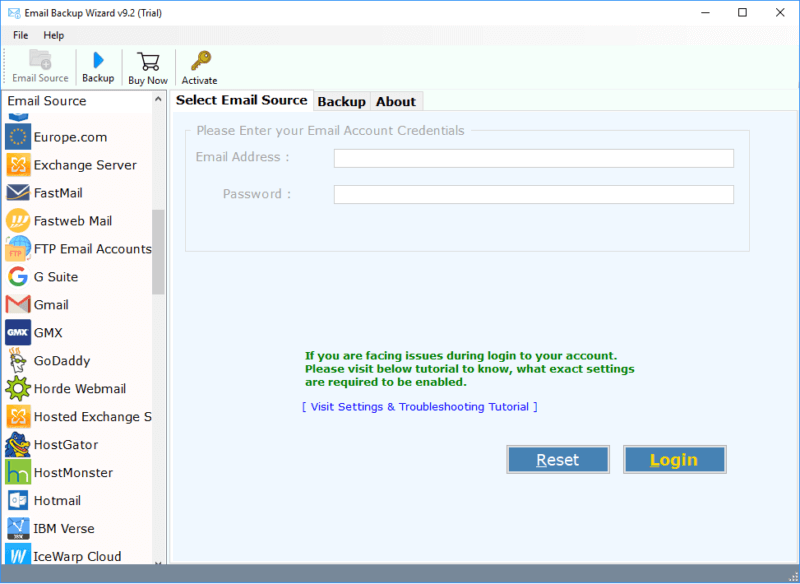
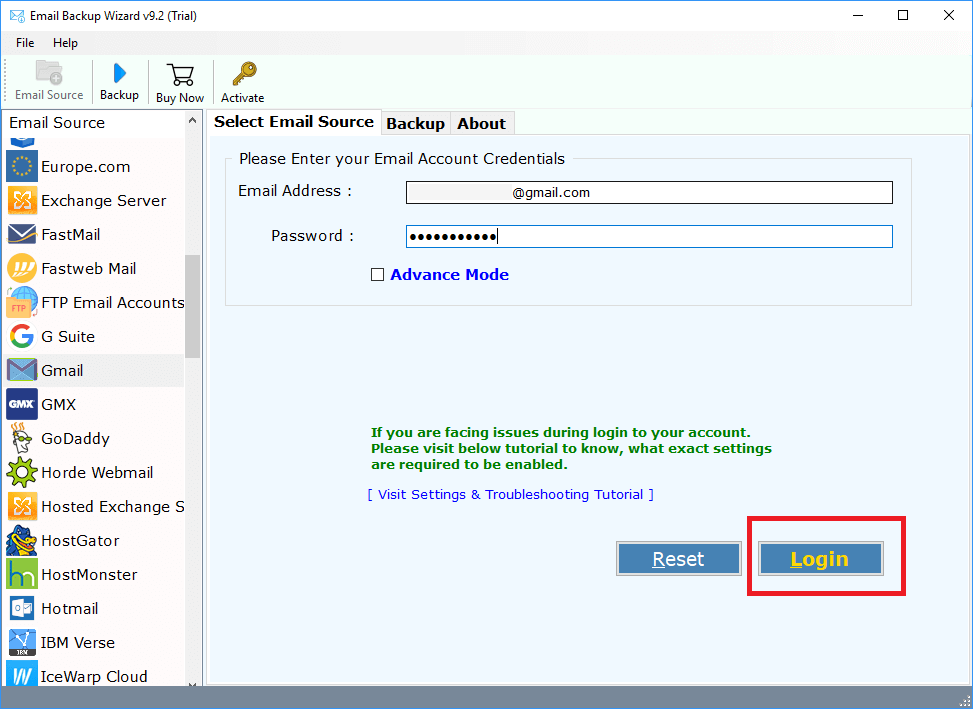
Step 2. Select Gmail and enter your account credentials.
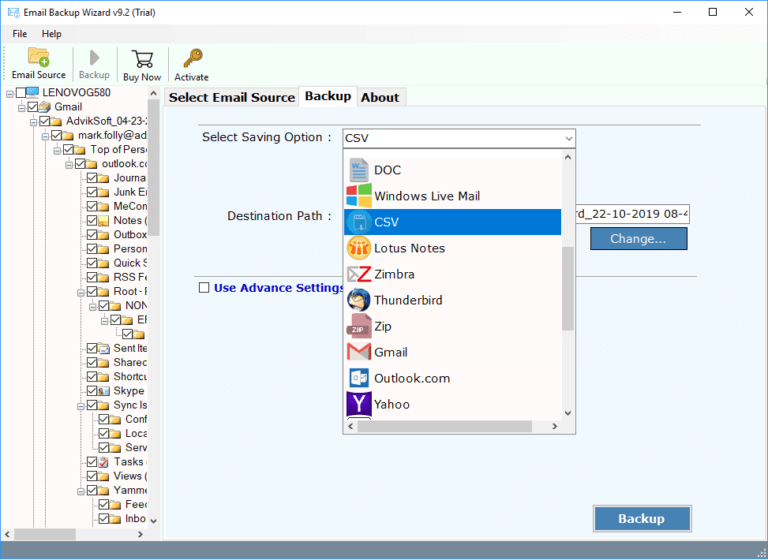
Step 3. Select the folders you want and then choose CSV as the saving option.
Step 4. Click the "Convert" button and analyse the conversion process.
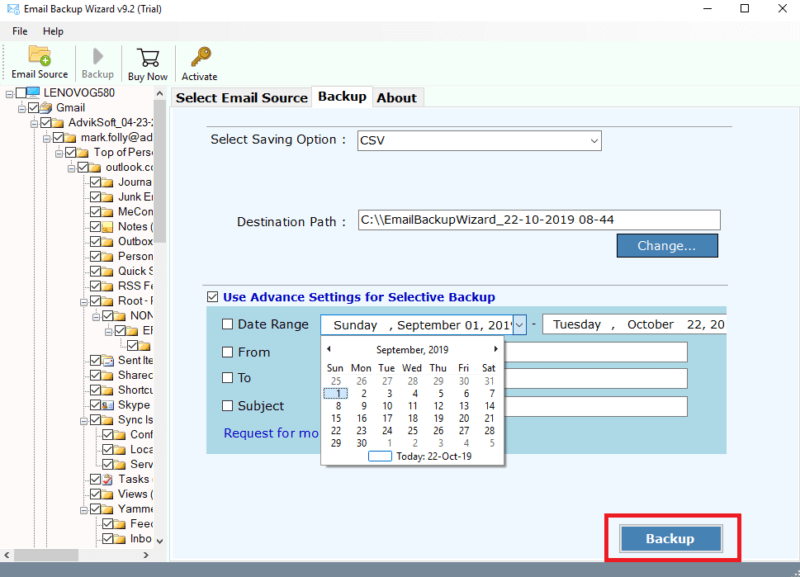
This is how you can convert Gmail to excel in simplest way. This is one of the most trusted approach of saving multiple Gmail messages as Excel spreadsheet.
We have made the whole process as efficient as possible. MailBackup365. We offer help according to the context in every assistant screen, which is easy to learn even for first-time users. You do not need to install any application other than Gmail to CSV Converter.
Still Want to Convert the Free Way?
If you still want to download Gmail backup as Excel format using a free trick, this is the perfect solution you can try. Remember, when it comes to email conversion tools, you get what you pay for. You may prefer a free method, but there are some downsides:
- Time Consuming: This method is very time consuming and requires a lot of effort. If you have 10 or 20 emails that you want to export as an Excel file, you can choose this method. If you want to convert thousands of Gmail emails to Excel format, this method will take too many days.
- Improper Folder Hierarchy: With this method you can lose the folder hierarchy and have to arrange your emails yourself according to the original folder structure. This can lead to the loss of your data and efforts.
Free Trick to Export Gmail to Spreadsheet are as follows;
Step 1. Launch Gmail account in your browser and open an email.
Step 2. Click three dots on top right corner and click Download Message.
Step 3. Repeat this method for every message that you want to export in excel spreadsheet.
Step 4. Download Install and run Advik EML to CSV Converter Tool.
Step 5. Select “Add Folder Having EML Files” option and browse the folder having EML File
(Note: You need to add 10 EML files in a single folder)
Step 6. Click the Convert button and wait for the program to export Gmail EML into CSV Format.
Step 7. Repeat the step for every 10 emails and then combine your Excel CSV using copy Paste function.
This is how you can export Gmail emails to Excel format using free method.
While "free" may initially appear to be a cost savings, if you consider the hours required to convert Gmail to Excel and the poor-quality result, you can save money with an affordable commercial tool.
Key Features of MailBackup365
Gmail to CSV Converter
MailBackup365 Gmail Emails to Excel Converter is equipped with many advanced functions. Some of them are as follows:
1. Download Attachments in a Separate Folder; Gmail to Excel File Converter was programmed by email experts who know the value of attachments in an email conversation. For this reason, this tool downloads all attachment files to a separate folder so that you can easily access your attachment files later.
2. Maintain Folder hierarchy of emails; You can easily find your emails after the conversion process is complete. Because the tool maintains the folder and subfolder structure of emails.
3. Complete Backup of Gmail Account; MailBackup365 Gmail to Excel Converter makes it easy for users to download full mailbox emails in an Excel format that includes inbox, outbox, sent mail, drafts, and other custom folders.
4. Equipped with Advanced Filter Option; In most cases we need to filter emails by date range, subject, sender and recipient address or using the combination of above. This tool offers its users the opportunity to apply these email filters and save time and effort with filtered results.
The list of functions is endless. Now let's take a look at what our customers have said about us
Few Words from our satisfied users:
Software worked great as it easily converts Gmail messages to Excel format by doing few clicks.
I was looking for a quick way to export Gmail emails to Excel and found this amazing tool that was recommended by many experts in various forums. So, I decided to give it a try and this tool worked according to my requirements.
MailBackup365 Gmail to Excel Converter is a risk-free and easy to use software that makes it easy to Gmail export emails to Excel format.
Another reliable software from MailBackup365. To download Gmail emails to Excel, we chose the migration version of this software. This time, their software also worked as advertised and did the conversion of Gmail emails to Excel file.
MailBackup365 has been an email specialist for 15 years. Our goal is to develop an email backup and conversion solution that is accurate and simple. Our solutions are so simple that they are the preferred choice for email forensics, government agencies, universities, and large corporations.
Prefer to Try Before You Buy?
If you’re not ready to buy, no problem. Simply take advantage of our free trial and start using MailBackup365 Gmail to Excel Export today.
There’s no sign-up form and no credit card needed to download Gmail to Excel Converter and you can run it in trial mode for as long as you need. Take it for a test run. And you can see yourself that how easy it is to use. We want you to be confident that MailBackup365 is fully compatible with your computer and does what you need.
Ready to Buy Now? It’s Quick and Easy
Now export Gmail emails to Excel without any limitation with Pro version. Choose the right plan that suits you the best.
Gmail to Excel Converter
Pro License- Unlimited Gmail Accounts
- Supports More than 40 Webmail Services
- One Time Fees
- Lifetime Validity
- Lifetime Updates
- No Renewal Charges
- 24/7 Customer Support
- Excel, PST, MSG, EML, MBOX, EMLX, PDF, RTF, HTML,DOC, XPS, MHT, Windows Live Mail, Lotus Notes, Zimbra and Thunderbird
*No Extra Charges
Gmail to Excel Converter
Migration License- Unlimited Gmail Accounts
- Supports More than 40 Webmail Services
- One Time Fees
- Lifetime Validity
- Lifetime Updates
- No Renewal Charges
- 24/7 Customer Support
- Excel, PST, MSG, EML, MBOX, EMLX, PDF, RTF, HTML, DOC, XPS, MHT, Windows Live Mail, Lotus Notes, Zimbra, and Thunderbird
*No Extra Charges
- Office 365, Gmail, G Suite, Outlook.com, Yahoo mail, Rediffmail, AWS Workmail, IBM Verse, Ice Wrap, Exchange Server, and IMAP
*No Extra Charges
- Operating System : MailBackup365 Gmail to Excel Converter runs under Windows 10, 8, 7, Vista, and XP.
- Internet : Online license activation, validation, and re-activation require an internet connection.
- Hardware Requirements : 512 MB of RAM, 100 MB of disk space. Pentium Class or higher processor.
- Software Delivery : Instant Delivery of License by Email
- Account Limitation : You can Backup unlimited Gmail Account as long as you have the licensed version of this tool. For Demo users you can backup 10 emails from each folders.

Frequently Asked Questions
In order to convert Gmail to Excel file format you need to follow these simple steps;
- Launch Mailbackup365 Gmail to Excel Converter software.
- Select Gmail and enter login details of the account.
- Select the folder you want to convert and choose CSV as a saving option.
- Click the Save button and wait for the program to finish the conversion.
This is how you can easily download Gmail emails in Excel format.
Yes, you can run Gmail to CSV Converter on almost all current versions of Windows, including Windows 10. You can also run this utility on both 32-bit and 64-bit computers.
You can convert the unlimited number of Gmail accounts as long as you have the licensed version of this tool. For demo users, you can convert 10 emails from each folder.
Yes, this wizard can save both Gmail and G Suite email in Excel format.