Export Gmail Emails to PDF
Save Multiple Gmail Emails as PDF with Attachments
Saving multiple Gmail messages as PDF? Unless you’ve found a perfect solution you can trust, you’re faced with a challenge.
The previous version of Gmail had a useful feature that allowed users to quickly save Gmail messages as a Google document in their Google Drive. You open an email thread in Gmail, choose the "Create Document" menu option, and the message is exported to Google Docs in a document format. This feature is no longer available in Gmail. However, there are two ways to export Gmail emails to PDF files. In this article I will present both free and verified solutions to save multiple Gmail emails as PDF files.
If you need to convert multiple Gmail emails to PDF, the free solution is not for you. If you try to batch convert Gmail to PDF using free solutions or, cracked software that can convert Gmail messages to PDF files, you will get the following:
- Messed up folder structure
- Loss of data
- Viruses And Malware Are Just The Start
- You Can’t Update Your Software, And You’ll Live With Bugs
- Broken embedded image
- Incorrect message dates
And the worst thing about converting your emails with freeware and pirated copies is that you may lose your valuable hours and days and still ended up with losing all your valuable data.
How to Batch Convert Gmail to PDF - Simple Way
With MailBackup365 Gmail to PDF Converter, users can export Gmail messages to PDF in just 4 steps. The user interface and the performance of the tool are very impressive as anyone with basic computer skills can save multiple Gmail emails in PDF format. Some of the advantages of using Gmail to PDF Converter are:
Get Gmail to PDF Converter Now1. Maintain Folder Structure of Emails: After converting thousands of emails, you don't have to spend hours and days arranging Gmail emails in the exact folder hierarchy as in your mailbox account. This is a time saving feature offered by Mailbackup365 Gmail to PDF Converter.
2. Include Attachments in PDF File: Email without attachments is useless. Today most of the valuable and confidential information is shared using the attached file. For this reason, attachments are a very important part of any email conversation. With this tool, users can save all attachments in a PDF file.
3. Preserve Key Element of Emails: The Gmail to PDF Converter tool has been programmed by our experts to retain all the important elements of emails such as Cc, Bcc, header and footer information, embedded images, Unicode texts, etc. The layout of the email also remains unchanged.
4. Advanced Email Filter Option: Most of the time we need to filter and print emails from particular date range or by particular email adress. In that case this software is perfect for you. Using Mailbackup365 Gmail to PDF Converter user can easily download gmail messages as PDF file format using advanced filter options
5. Support Windows OS: This software can be used on all Windows operating system platforms such as Windows 10, Windows 8, Windows 7, Windows Vista and Windows XP. Apart from that, you can easily run this utility on both 32-bit and 64-bit computers
The list of features of MailBackup365 Gmail to PDF Converter is endless...
Steps to Export Gmail Emails to PDF in Bulk are as follows;
Step 1. Run Gmail to PDF Export Tool in your system
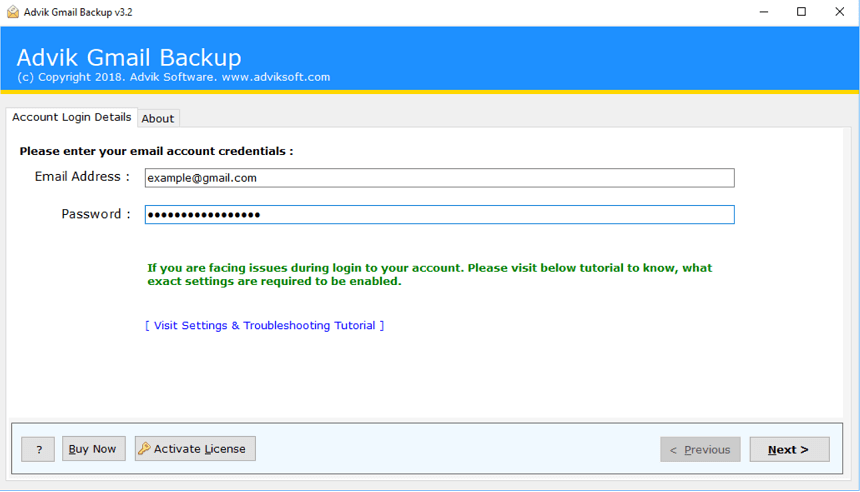
Step 2. Enter Gmail Login Credentials in software panel.
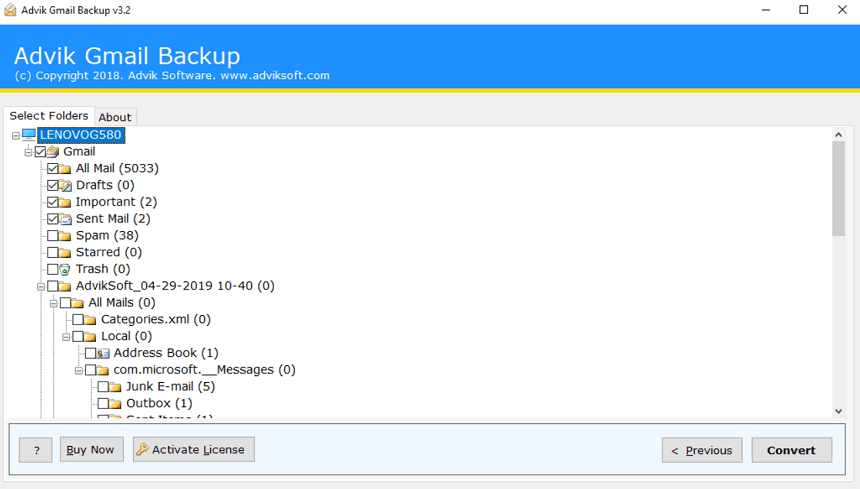
Step 3. Select desired folders from the list and click the next button.
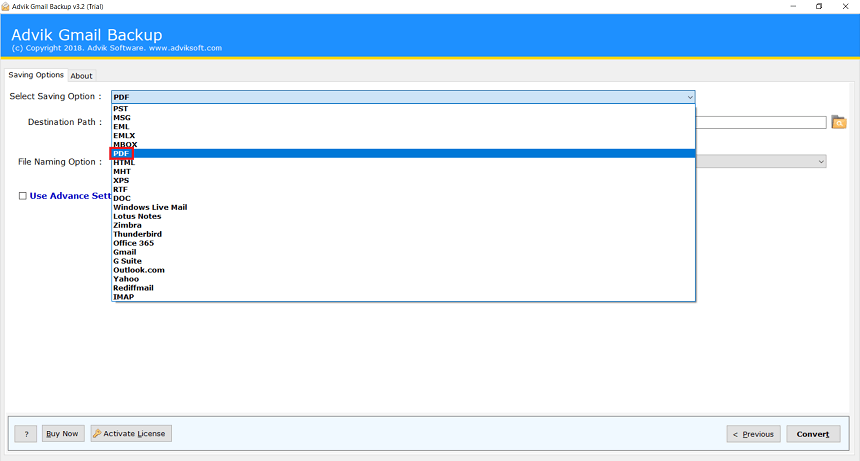
Step 4. Select PDF as a saving option from the list.
Step 5. Click the “Convert” button. Analyze the process.
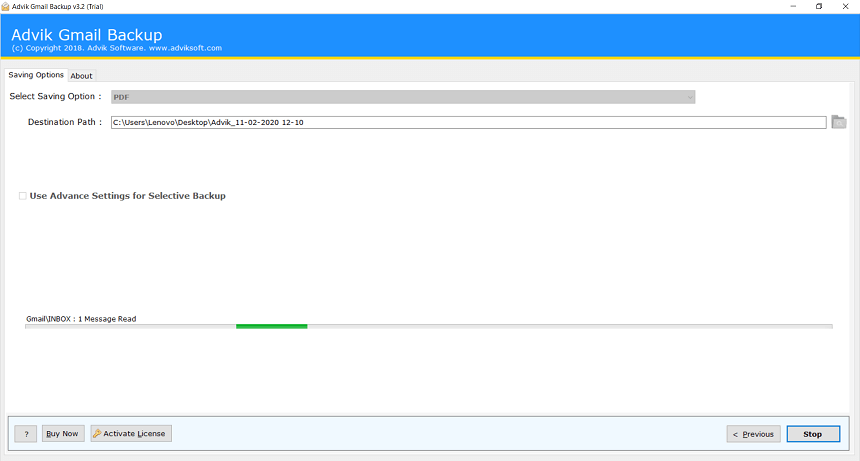
Done! Now, software will start downloading Gmail backup as PDF format.
This MailBackup365 Gmail to PDF Export Tool helps millions of Gmail users to save their Gmails emails as PDF format in your local drives. You can then use this PDF format to access Gmail emails into Adobe PDF reader or any other PDF reader application.
Still Want to Convert the Free Way?
This method is suitable only if you need to save few Gmail messages as PDF format. This method is a lot more complicated and time consuming if you have multiple email messages. But it’s by far the best free solution on the Internet
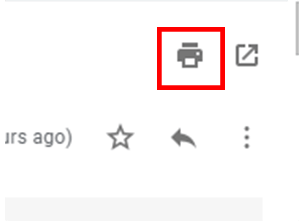
First, open a Gmail email in Google Chrome. In the top right corner of Gmail email there is a "Print" button. It looks like a little printer. Click the Print button to open the print window.
The print preview window contains a change button that you can use to configure the target printer. Press Change to open a list of destinations for the email. There you can select a destination for "Save as PDF". Select "Save as PDF" and click the "Save" button to select a folder for saving the document.
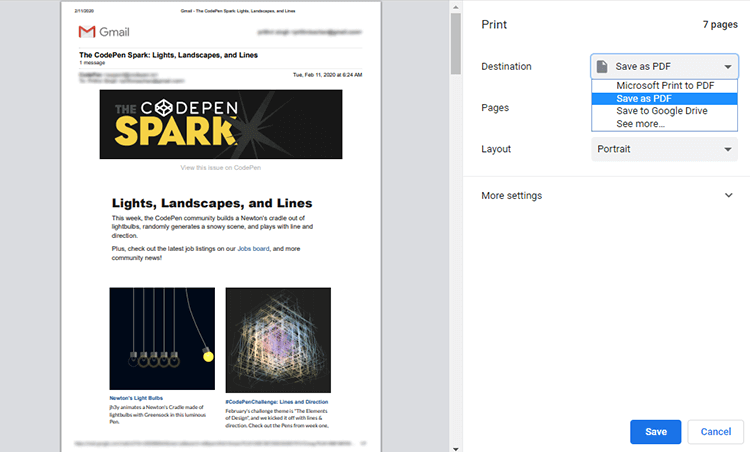
You need to repeat the step again and again for saving every emails that you want to save as PDF file.
This is true. "Free" seems to be a cost savings at first, but if you factor in the hours required to migrate your email - and the poor quality result - you can actually save money with a commercial tool.
Key Features of Mail Backup 365
Gmail to PST Converter
- Save Multiple Gmail emails as PDF in one Click
- Export Gmail emails to PDF of a particular daye Range
- Simplest Graphical user Interface for novice or first time users
- No data loss during the process of fownloading of emails from Gmail to PDF
- 100% safe and secure way to save Gmail messages as PDF in Bulk
- 24/7 dedicated customer support for all valuable users
- Free Demo Download is available to check the efficiency of the tool
Few Words from our satisfied users:
I used this tool to convert over 5000 Gmail emails to PDF. The tool worked well for me. After entering my login information and selecting PDF as a storage option. This tool then does the rest for me. Amazing utility!
I've tried a number of online utilities to convert my Gmail emails to PDF, but none of them performed as well as Gmail to PDF export tool. It's easy to use, even for newbies like me and their support team.
MailBackup365 is is an email specialists from last 15 years. Our goal is to develop an email backup and conversion solution that’s both accurate and simple. Our solutions are so simple that it is the preferred choices for email forensics professionals, government agencies, universities and major corporations.
Prefer to Try Before You Buy?
If you’re not ready to buy, no problem. Simply take advantage of our free trial and start using MailBackup365 Gmail to PDF Export today.
There’s no sign-up form and no credit card needed to download Gmail to PDF Converter and you can run it in trial mode for as long as you need. Take it for a test run. And you can see yourself that how easy it is to use. We want you to be confident that MailBackup365 is fully compatible with your computer and does what you need.
Ready to Buy Now? It’s Quick and Easy
If you are in need to convert unlimited number of Gmail emails to PDF format then MailBackup365 Gmail to PDF Converter is the perfect choice for you.
Gmail to PDF Converter
for Home and Business Users- Unlimited Gmail Accounts
- One Time Fees
- Lifetime Validity
- Lifetime Updates
- No Renewal Charges
- 24/7 Customer Support
- PDF, PST, MSG, EML, EMLX, MBOX, HTML, MHT, XPS, RTF, DOC, Windows Live Mail, Lotus Notes, Zimbra & Thunderbird
*No Extra Charges
- Office 365, Gmail, G Suite, Outlook.com, Yahoo Mail, Rediffmail, and IMAP Option
*No Extra Charges
- Operating System : MailBackup365 Gmail to PDF Converter runs under Windows 10, 8, 7, Vista, and XP.
- Internet : Online license activation, validation, and re-activation require an internet connection.
- Hardware Requirements : 512 MB of RAM, 100 MB of disk space. Pentium Class or higher processor.
- Software Delivery : Instant Delivery of License by Email
- Account Limitation : You can Backup unlimited Gmail Account as long as you have the licensed version of this tool. For Demo users you can backup 10 emails from each folders.

Frequently Asked Questions
Steps to save multiple Gmail emails as PDF are as follows;
- Install and run MailBackup365 Gmail to PDF Converter in your system.
- Enter your Gmail login details to sign in.
- Select the mailbox folder and click the next button.
- Select PDF as a saving option.
- Click the “Convert” button. Analyze the process.
No, the tool will not save any login credentials in any database. You need to enter your complete login details everytime when you need to use this tool.
Yes, you can use this tool to save G Suite emails to PDF format in your system.